


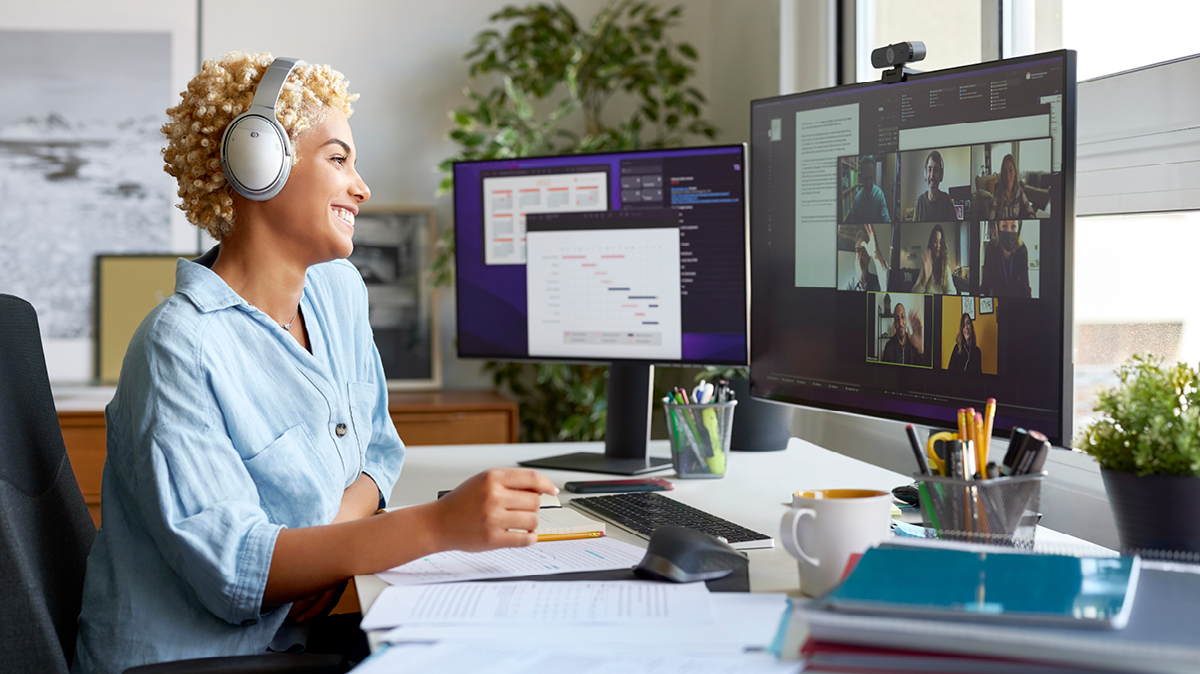
Sometimes, one computer monitor just isn’t enough – and the good news is it’s simple to add a second screen to your existing desktop computer or laptop. Using a dual monitor setup increases the size of your desktop, improving your entertainment options and giving you more room to view your work. For example, you could use one monitor to display feedback for a presentation while you action changes on the second screen in front of you, eliminating the need to flick between tabs.
Create a Dual Monitor Setup in 5 Simple Steps
Step 1: Choose a monitor for your second screen, ideally one that is a similar size to your current main screen.
Step 2: Check that you have the correct cables to fit the ports on your computer and new monitor.
Step 3: Connect the monitor to your computer, directly or using a docking station.
Step 4: Power on your computer and monitor.
Step 5: Open your computer’s display settings (Windows: Settings > System > Display; Mac: System Settings > Displays). Select and drag the displays to arrange your screens to match your physical setup. Test your new layout by moving your mouse pointer across the different displays to make sure you can move smoothly between screens.
How to Choose the Best Monitors for a Dual Monitor Setup
Monitor size and resolution: If you want a streamlined experience, opt for two monitors of the same size and resolution so moving your mouse and windows across the screens feels natural. A display between 25.5 and 34 inches will suit most desks. Consider viewing distance and your available space when choosing.
Curved vs flat screen: A curved screen allows for a more immersive effect for gaming or viewing content while flat panel monitors are easier to align and mount.
Laptops: Extend your laptop display using a monitor as one screen and your laptop screen as the second, or mirror and extend your display using two separate monitors.
Portable displays: If you’re a hybrid or remote worker, a portable monitor is a great option for extending your screen real estate. Designed to be lightweight and portable, you can carry one alongside your laptop to create a multiple-screen setup on the go.
Hot Tip: Using a wireless keyboard and mouse for your dual monitor setup will help to minimise cable clutter in your workspace.
SEE ALSO: Tech Desk Accessories to Power Your Workspace This EOFY
How to Position Dual Monitors with Monitor Arms and Stands
Before deciding on a dual monitor setup, you need to make sure you have room on your desk to sit them side-by-side. All monitors come with a desktop stand but another option that saves space and ensures the screens are at the right height is the use of dual monitor arms.
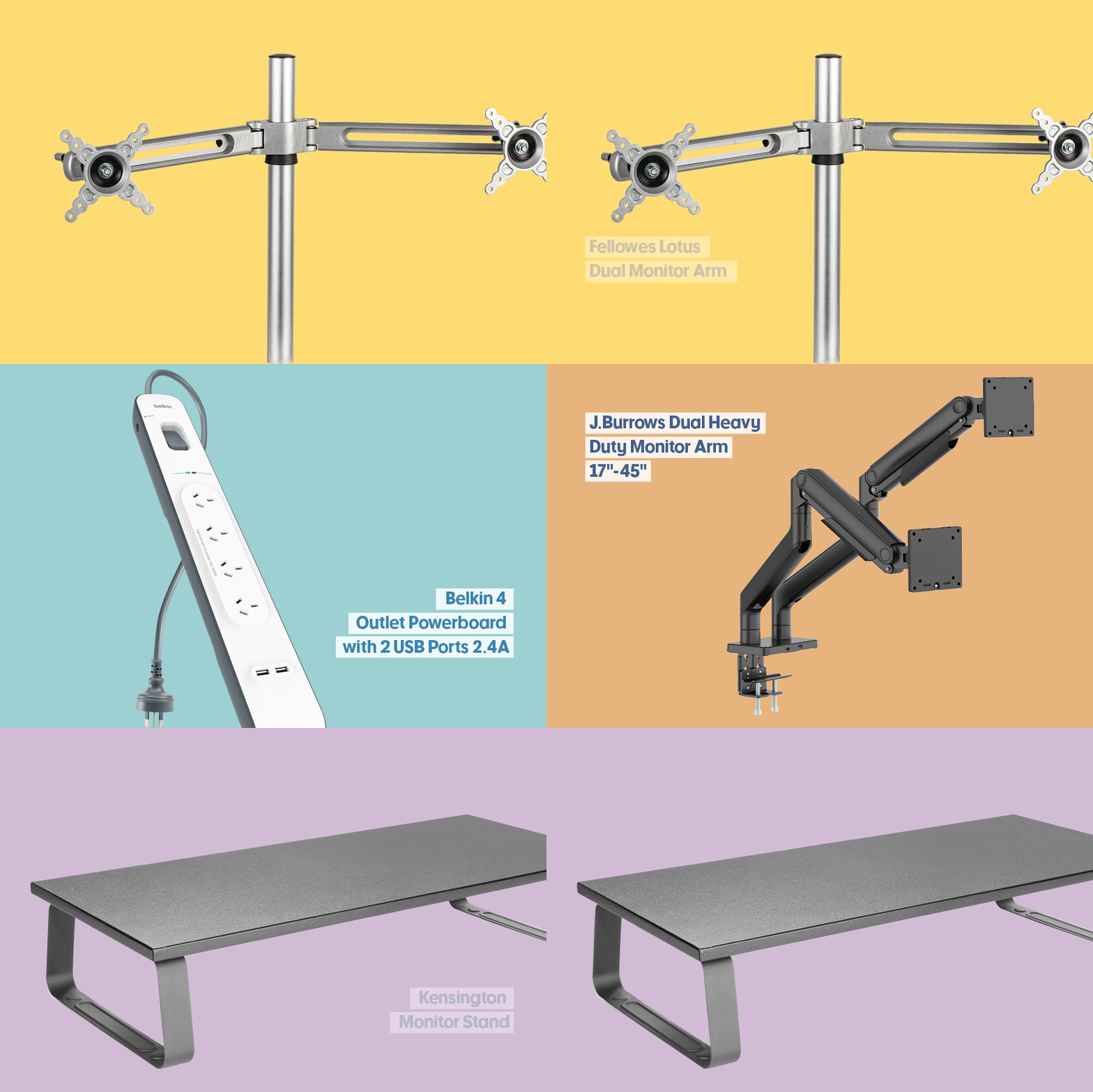
Monitors that are VESA mount compatible (they have four screw threads on the back) can be attached to monitor arms such as the J.Burrows Dual Heavy Duty Monitor Arm or a stand like the Brateck Gas Spring Dual Monitor Arm.
If adding a second screen to your laptop or you have different-sized monitors, a laptop stand or monitor stand will come in handy to position your screens at a similar height.
Monitors also come with their own power cables, so you need to make sure there are enough powerpoints available, or purchase a powerboard such as the Belkin 4 Outlet Powerboard with 2 USB Ports 2.4A.
What to Try
- J.Burrows Dual Heavy Duty Monitor Arm 17"-45"
- Brateck Gas Spring Dual Monitor Arm
- Kensington Monitor Stand
- J.Burrows Laptop Stand Silver
- Belkin 4 Outlet Powerboard with 2 USB Ports 2.4A
SEE ALSO: The Best Office Desks for Work and Home This EOFY
How to Connect Your Dual Monitor Setup: Cables and Adapters

The main monitor connections include HDMI, DisplayPort, USB-C and Thunderbolt. To connect your monitors, match the corresponding cable from the back of the laptop or computer to the port on the back of the monitor. For example, one end of the HDMI cable would be connected to the monitor and the other to the HDMI port on the computer. These cables often come with the monitors.
If your computer or laptop doesn’t have enough free ports, or doesn’t have a port to match the monitor’s requirements, you can also purchase an adaptor such as the Comsol USB-C to Dual HDMI 4K Adapter. The other option is to buy a hybrid cable that allows you to connect one end to the HDMI port on the computer and the other end to the DisplayPort on the monitor, such as the Comsol DisplayPort Male to HDMI Male 4K Cable 2m.
What to Try
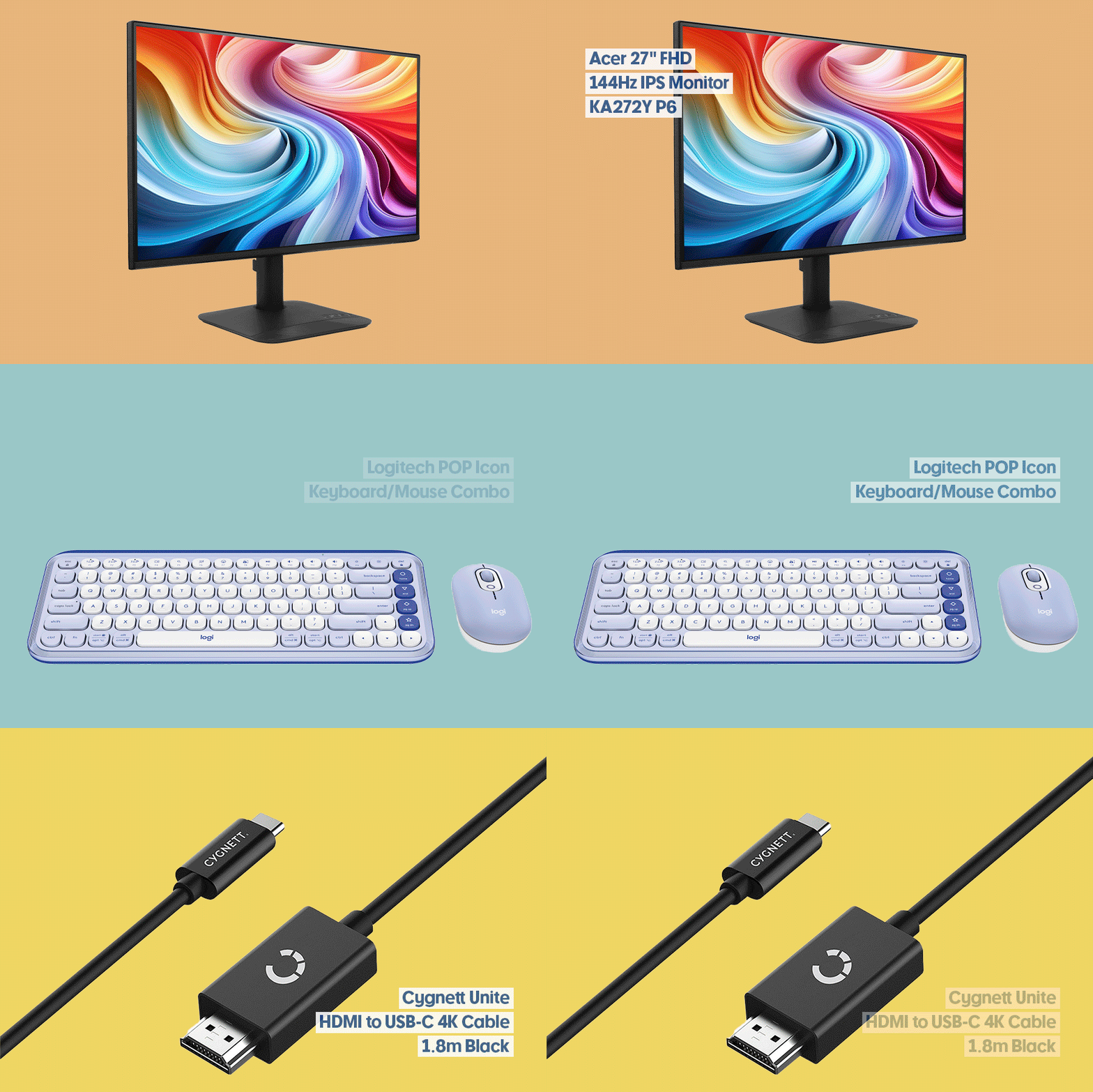
- Cygnett Unite HDMI to USB-C 4K Cable 1.8m Black
- Acer 24" FHD 144Hz IPS Monitor KA242Y P6
- Logitech POP Icon Keyboard/Mouse Combo Lilac
- Comsol Male USB-C to HDMI 4K2K Adaptor
- Comsol USB-C to Dual HDMI 4K Adapter
- Bonelk Desktop Series 9-in-1 USB-C Multiport Hub Space Grey
- Comsol DisplayPort Male to HDMI Male 4K Cable 2m
- Lenovo 15.6” Portable USB-C Monitor L15
- Lenovo ThinkVision FHD Touch Screen Portable Monitor M14T
- Acer 27" FHD IPS Monitor KA272"
- Samsung 34" UWQHD 100Hz 5ms Curved USB-C 90W PD Monitor S65TC
How to Adjust Display Setting for a Dual Monitor Setup
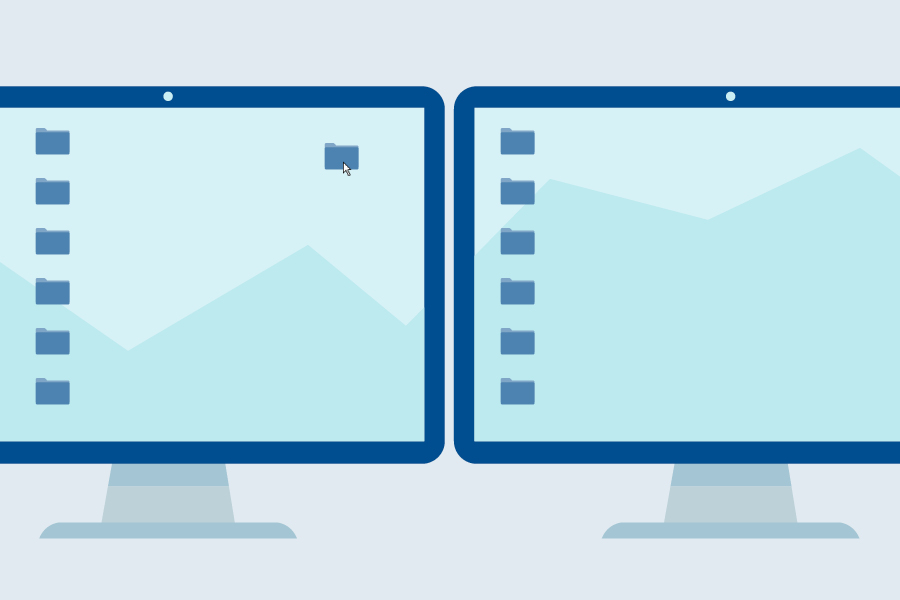
Once the monitors are connected, you will need to adjust your display settings to ensure they’re in the correct arrangement. This will let you move the mouse across both screens and drag windows and documents from one monitor to the other.
To do this, head to your computer’s settings and look for options to set up your system display. You should see a graphic of two monitors, which will give you the option to configure and match how the physical monitors themselves are arranged on your desk. Make sure they are aligned to suit your preferences, then save your settings.
SEE ALSO: 10 Hacks to Make Your Gaming Setup Even Better
Need further assistance with your tech problems? Call Geeks2U on 1300 725 420 or visit geeks2u.com.a
This article was originally published in October 2020 and has been updated.
