


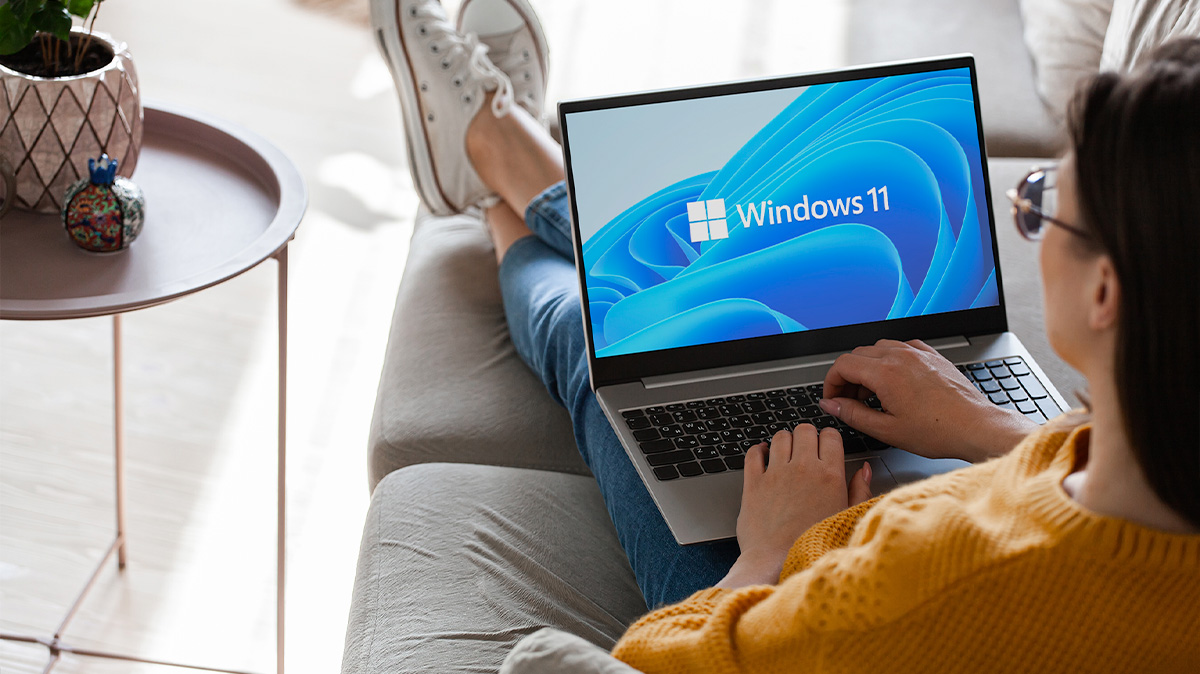
If you’re using Windows 10, there’s an important update on the horizon. On October 14, 2025, Windows 10 will be unsupported, which means you’ll need to upgrade your software or transition to a Windows 11 device to continue receiving vital security and performance updates. But here’s the exciting part: the upgrade is easy, and it brings with it some fantastic next-generation features.
“Microsoft improved the user interface with Microsoft Windows 11, offering a modern new look and significant improvements to performance,” says Nick Broughall, the founder and editor of tech reviews site BTTR.reviews. “AI is also baked deep into Windows 11 via [AI companion] Copilot, which helps improve your productivity and makes using your PC more intuitive”.

What Are the Key Benefits of Upgrading to Windows 11?
As soon as Windows 11 loads you’ll see the step up in experience. “Windows 11 has a modern, visually refreshed user interface,” says Nick. “It offers rounded corners, centred taskbar icons and a simplified Start Menu focused on your recent files and pinned apps. A new widgets panel provides a customisable quick view of personalised information, too.”
Thankfully, it’s not just window dressing. As Nick explains, Windows 11 also runs a lot faster. “Windows 11 prioritises performance for the apps you’re using, offers faster loading times, and lets you connect your phone easily. For multitasking, Virtual Desktops allow you to create separate workspaces for different tasks, which helps reduce clutter and improve focus.
“Then there’s Snap Layouts and Snap Groups, which allow you to quickly arrange multiple applications into predefined layouts by hovering over the maximise button on a window. Snap Groups will then remember these arrangements, so you can restore them with a single click. I also love that Microsoft Teams is built directly into the taskbar for Windows 11, making it quicker to meet and collaborate with colleagues.”
Hot Tip: To improve your work focus, Nick says to try the Focus Sessions feature. “It puts a timer on the screen, turns on Do Not Disturb, and helps you concentrate on a specific task.”
SEE ALSO: 8 Tech Tools to Make Life Easier

Is Windows 11 Good for Gaming?
Gaming on PC takes a big step forward on Windows 11 PCs, thanks to the integration of the Xbox app. “For gamers, Windows 11 offers several significant upgrades, with features like DirectX 12 Ultimate delivering immersive graphics, DirectStorage bringing faster game loading and Auto HDR giving a more vibrant visual experience on compatible displays,” says Nick.
What Are the Copilot AI and Security Features in Windows 11?
Perhaps the biggest Windows 11 change you’ll benefit from is artificial intelligence. “AI is built directly into Windows 11 through Microsoft Copilot, an AI assistant that can help with various tasks like generating text, summarising content and navigating system settings,” says Nick.
In this age of seemingly endless online threats, Windows 11 also brings peace of mind. “Windows 11 offers enhanced security features through continuous updates, including advanced threat protection and improved encryption,” says Nick. “Windows 11 supports privacy-friendly technologies like passkeys and AI-powered smart app control, too.”
Hot Tip: “While newer Windows 11 PCs have a dedicated Copilot button, you can easily voice your prompts and questions to Copilot [even if you don’t have a Copilot key]; just press alt + spacebar,” says Nick.
SEE ALSO: Geeks2U: Expert Advice on Staying Organised With Tech

How do I Upgrade to Windows 11?
If you bought your laptop in the first half of 2021 or earlier, you may need to upgrade to Windows 11 (most new model PCs purchased after 2021 are likely to have Windows 11 pre-installed). It’s simple!
Step 1: Make sure you have the latest version of Windows 10. In the taskbar search box type ‘updates’ and select ‘Check for Updates’ from the results. Install any outstanding updates.
Step 2: You need to check to see if your PC meets the system requirements. Download PC Health Check, install and then select ‘Check Now’. It will test your PC hardware to make sure it’s Windows 11 compatible.
Step 3: If compatible, download the Windows 11 Installation Assistant from Microsoft. Open it up and follow the prompts to download Windows 11.
What Are The Differences Between Windows 11 Home and Windows 11 Pro?
“Windows 11 Home has everything most people need for everyday tasks on their personal computer,” says Nick. “Windows 11 Pro is designed more for small business or professional users, and includes additional advanced features such as BitLocker encryption, Group Policy Management, Hyper-V virtualisation [allowing multiple operating systems to run on a single physical machine] and enhanced remote desktop capabilities.”
What if My Computer Can’t Upgrade to Windows 11?
If your upgrade attempt fails, it’s most likely because your system requirements are too low. Most commonly, this is found in devices purchased before 2017. In this case, it’s time to upgrade to a new device.
Most laptop manufacturers, including Acer, ASUS, HP, Lenovo, LG, MSI and Samsung now run Windows 11. Copilot+ PCs, a range of laptops from various brands certified by Microsoft that have a dedicated Copilot key on the keyboard, work hand-in-hand with Windows 11, offering exclusive AI features, long battery life and built-in security.
SEE ALSO: The Benefits of an AI Laptop for Work, Study and Play
What to Try
- Surface Pro Copilot+ PC 12" X Plus 16GB/512GB Violet
- Lenovo 14 Yoga Slim 7 Laptop Core Ultra 5 16/512GB
- Surface Pro (11th) Copilot+ PC 13" X Plus 16GB/1TB Pen Bundle
- Lenovo 14" Yoga 7 2-in-1 Copilot+ PC Ryzen AI 7 24GB/1TB
- Lenovo 14 Ideapad 5 2-in-1 Copilot+ PC Snapdragon X 16/512GB
- Acer 15.6 Nitro V 15 Gaming Laptop Ryzen 5 16/512GB RTX3050
